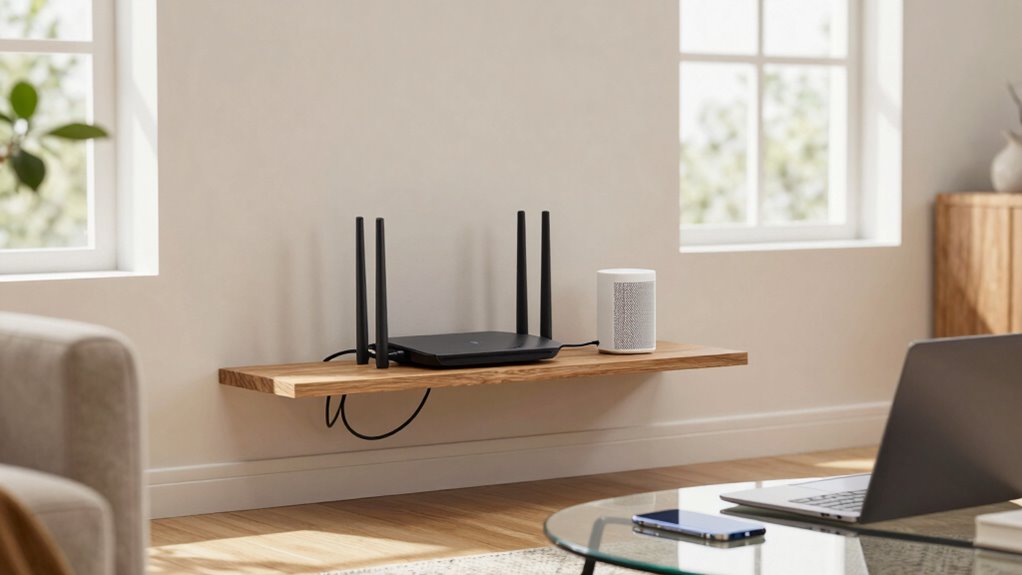

To build a more stable home Wi-Fi setup, position your router centrally and use mesh networks or extenders to cover dead zones. Optimize your settings by choosing less congested channels and switching to the 5 GHz band for faster speeds. Regularly update firmware, secure your network with strong passwords, and monitor signal strength to identify weak spots. These steps can considerably improve your connection, and if you keep exploring, you’ll discover even more ways to enhance your Wi-Fi experience.

Turn the school run and nap time into listening time
- Thousands of audiobooks, podcasts and originals
- Listen on your phone, tablet or Echo — also offline
- Cancel anytime
Key Takeaways
- Use a mesh network to ensure seamless coverage and eliminate dead zones in large or complex homes.
- Properly place Wi-Fi extenders midway between the router and coverage areas for optimal signal boost.
- Optimize router settings by selecting less congested channels and switching to the 5 GHz band for faster speeds.
- Regularly monitor signal strength and performance to identify weak spots and guide network adjustments.
- Implement strong security measures, including encryption and unique passwords, to protect network stability and privacy.
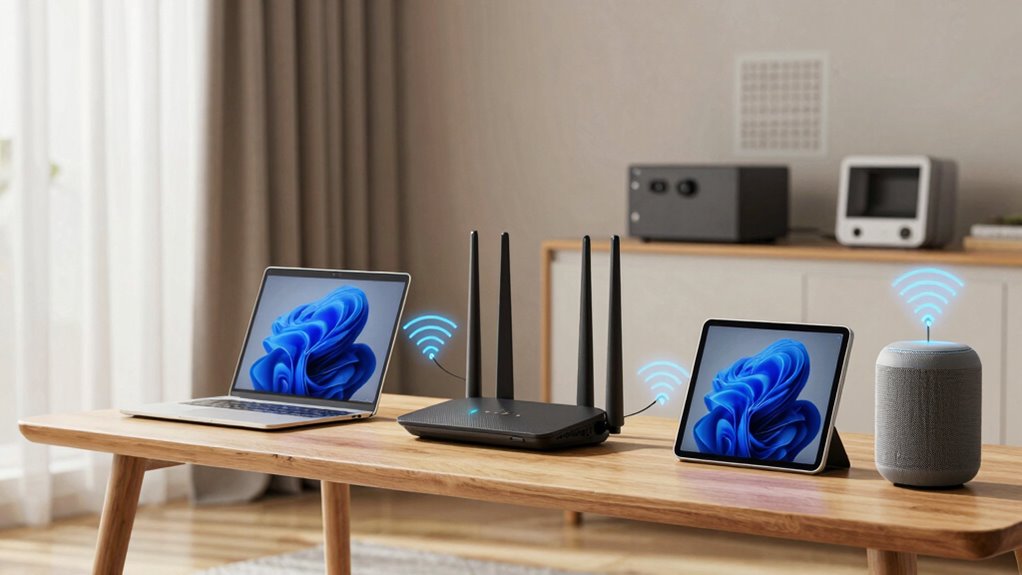
A dependable home Wi-Fi setup can make all the difference in how smoothly your devices connect and perform. If your Wi-Fi keeps dropping or struggling to reach certain rooms, it’s time to contemplate improvements. One effective way to boost your network’s stability is by adopting mesh networks. Unlike traditional routers, mesh systems use multiple units that work together seamlessly, creating a single, unified Wi-Fi coverage area. This setup eliminates dead zones and guarantees your devices stay connected as you move throughout your home. Mesh networks are especially advantageous if you have a large or multi-story house, as they distribute the Wi-Fi signal evenly and reduce congestion caused by multiple devices competing for bandwidth.
A reliable Wi-Fi setup ensures seamless device connections and eliminates dead zones throughout your home.
In addition to mesh networks, Wi-Fi extenders can also improve your setup. These devices amplify your existing Wi-Fi signal, extending its reach to areas that are far from your main router. Wi-Fi extenders are a cost-effective solution for small to medium-sized homes, especially if you want to avoid running Ethernet cables or replacing your current router. When choosing an extender, look for one that supports the same Wi-Fi standards as your router, guaranteeing compatibility and maximum speed. Proper placement of extenders is vital—they should be positioned halfway between your router and the area needing better coverage, not right next to the router or at the furthest point from it. This placement maximizes the extender’s effectiveness.
Another key step is to refine your router’s settings. Make sure your router is operating on the least congested channel, especially if you’re in a densely populated area where many networks overlap. Modern routers often have automatic channel selection, but you can also manually select a less crowded one through the router’s admin interface. Updating your router’s firmware regularly is equally important, as manufacturers often release updates that improve performance and security. Additionally, consider switching to the 5 GHz band if your devices support it. This band offers faster speeds and less interference, though it has a shorter range compared to the 2.4 GHz band. Understanding Wi-Fi standards can help you optimize your network setup. Ensuring your network uses proper network configuration can also prevent common issues and improve overall performance. Regularly checking your network’s Wi-Fi signal strength can help identify weak spots and guide your placement of extenders or mesh nodes.
To further enhance your network, exploring Wi-Fi security measures can prevent unauthorized access and safeguard your data. Ensuring your network encryption is properly enabled is also crucial in protecting your connection from potential threats. Finally, keep your network secure. Use a strong, unique password to prevent unauthorized access, which can slow down your Wi-Fi and compromise your privacy. Limit the number of devices connected at once if possible, and prioritize bandwidth for essential tasks. By combining mesh networks, Wi-Fi extenders, refined settings, and security measures, you can build a home Wi-Fi setup that’s reliable, fast, and ready to handle all your digital needs.
mesh Wi-Fi system for large homes
As an affiliate, we earn on qualifying purchases.
As an affiliate, we earn on qualifying purchases.
Frequently Asked Questions
How Often Should I Update My Wi-Fi Router Firmware?
You should update your Wi-Fi router firmware at least every few months or whenever a new update becomes available. Regular firmware updates improve performance and security. Make certain your router is placed in a central, elevated location to optimize signal strength. Keep an eye on manufacturer notifications, and don’t forget to check for firmware updates periodically to guarantee your Wi-Fi remains stable and secure.
Can I Use Multiple ISPS for Better Wi-Fi Stability?
Sure, using multiple providers sounds like a genius plan for perfect Wi-Fi stability—until you realize it’s more about redundancy than actual speed. By setting up redundant connections with multiple providers, you can keep your internet running smoothly if one fails. It’s a smart way to guarantee continuous connectivity, but keep in mind, managing these connections can get complicated. Still, it’s worth it for that uninterrupted Wi-Fi peace of mind.
What Are the Signs of a Faulty Wi-Fi Router?
You’ll notice a faulty Wi-Fi router if your signal drops frequently, speeds slow down, or devices struggle to connect. Poor router placement, like placing it near thick walls or electronics, can cause signal interference. Also, if your router overheats or the indicator lights blink abnormally, these are signs it’s malfunctioning. Regularly check placement and avoid interference sources to guarantee your router functions properly and maintains a stable connection.
How Do I Choose the Best Wi-Fi Channel for My Home?
Choosing the best Wi-Fi channel can feel like steering through a labyrinth of interference sources, but it’s simpler than it sounds. You want a channel with minimal interference, so your signal stays strong and stable. Use a Wi-Fi analyzer tool to scan for crowded channels and select one with the least congestion. This signal optimization guarantees your connection stays fast, reliable, and free from frustrating dropouts, even during peak usage.
Does Wall Material Significantly Affect Wi-Fi Signal Strength?
Yes, wall material substantially affects Wi-Fi signal strength. Wall insulation, especially thick or dense materials like concrete or brick, can block signals and cause interference. Signal interference from metal or electrical wiring inside walls can also weaken your connection. To improve Wi-Fi stability, consider placing your router in open areas, away from thick walls or electronic devices, and using range extenders if needed.
Wi-Fi extender with dual band support
As an affiliate, we earn on qualifying purchases.
As an affiliate, we earn on qualifying purchases.
Conclusion
With these tips, your home Wi-Fi will be like a steady river, flowing smoothly through every room. Think of your network as the backbone of your digital life—strengthen it, and everything becomes easier and more connected. Don’t let weak signals or dead zones be the storm clouds blocking your connection. Instead, create a Wi-Fi sanctuary where your internet runs like a well-oiled machine, keeping you seamlessly connected and in control.
As an affiliate, we earn on qualifying purchases.
As an affiliate, we earn on qualifying purchases.
Columbus Day / Indigenous Peoples' Day Picks
long weekend sales
As an affiliate, we earn on qualifying purchases.